Apple Photos puts a library between me and my files. There is a sidebar, there are memories and albums and filters, and there are prompts to do something with the photos. What I wanted was to point an application at a directory, see what is in it, and click through at my own pace.
So I built Image Viewer, a native macOS photo gallery, using Claude Code to write the Swift, which is a language I had not used before starting this.
The source is on GitHub if you want to take a look or build it yourself.
The App
You open it, point it at a folder, and browse the photos in that folder. There is no library to manage, nothing syncs, and nothing goes to a cloud service. The app reads the files in a directory and shows them in a grid of thumbnails.
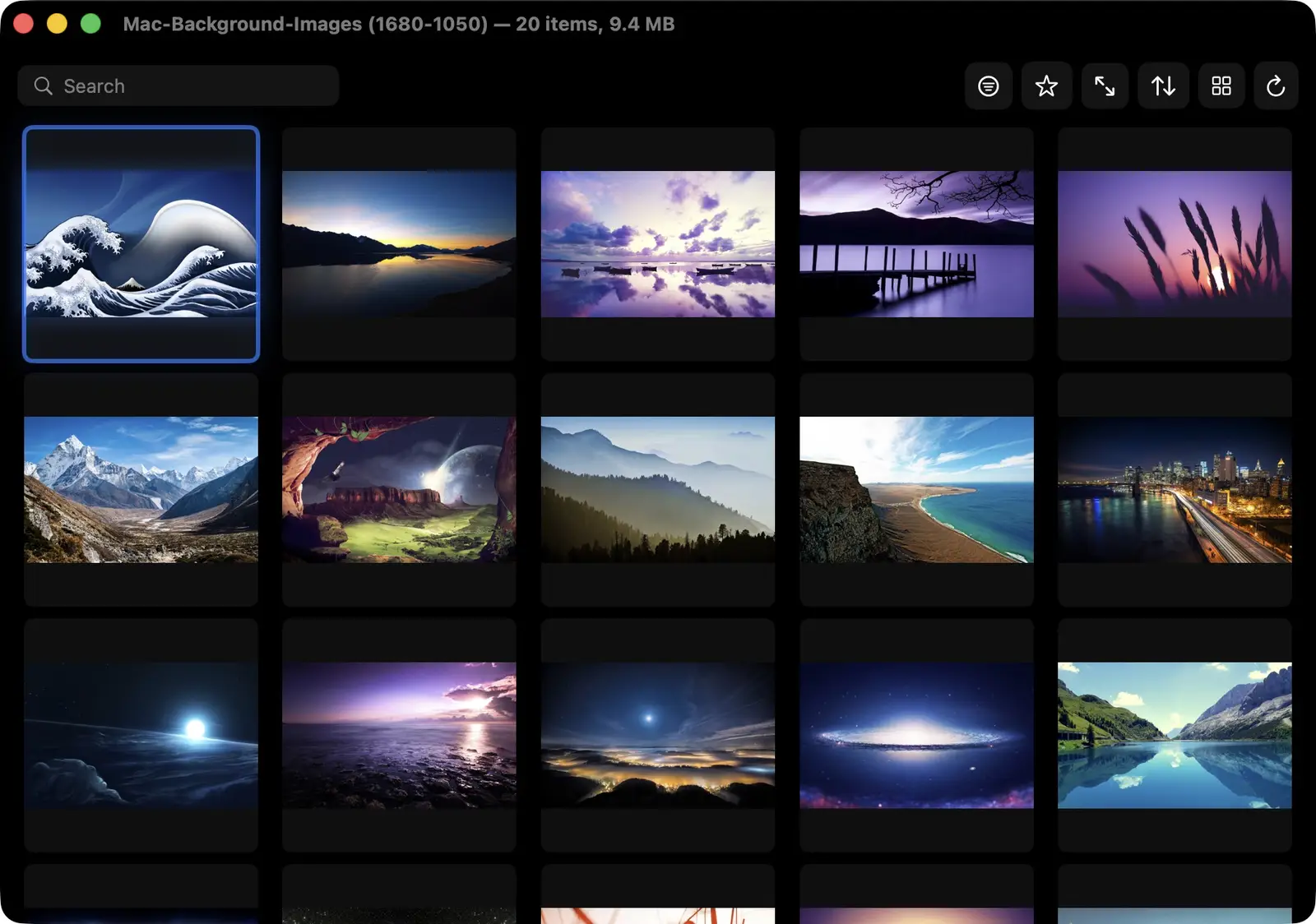
From the gallery you can sort by name, date modified, or file size. You can filter by file type or date range. There is a search field (Cmd+S to focus it) and a favorites system so you can star photos and filter down to just those. The thumbnail grid supports both square crop mode and aspect-ratio mode depending on whether you want uniformity or want to see the whole frame. Per-folder settings persist across launches, so the app remembers how you had things set up the last time you opened that directory.
Click a thumbnail and you get the full image view.
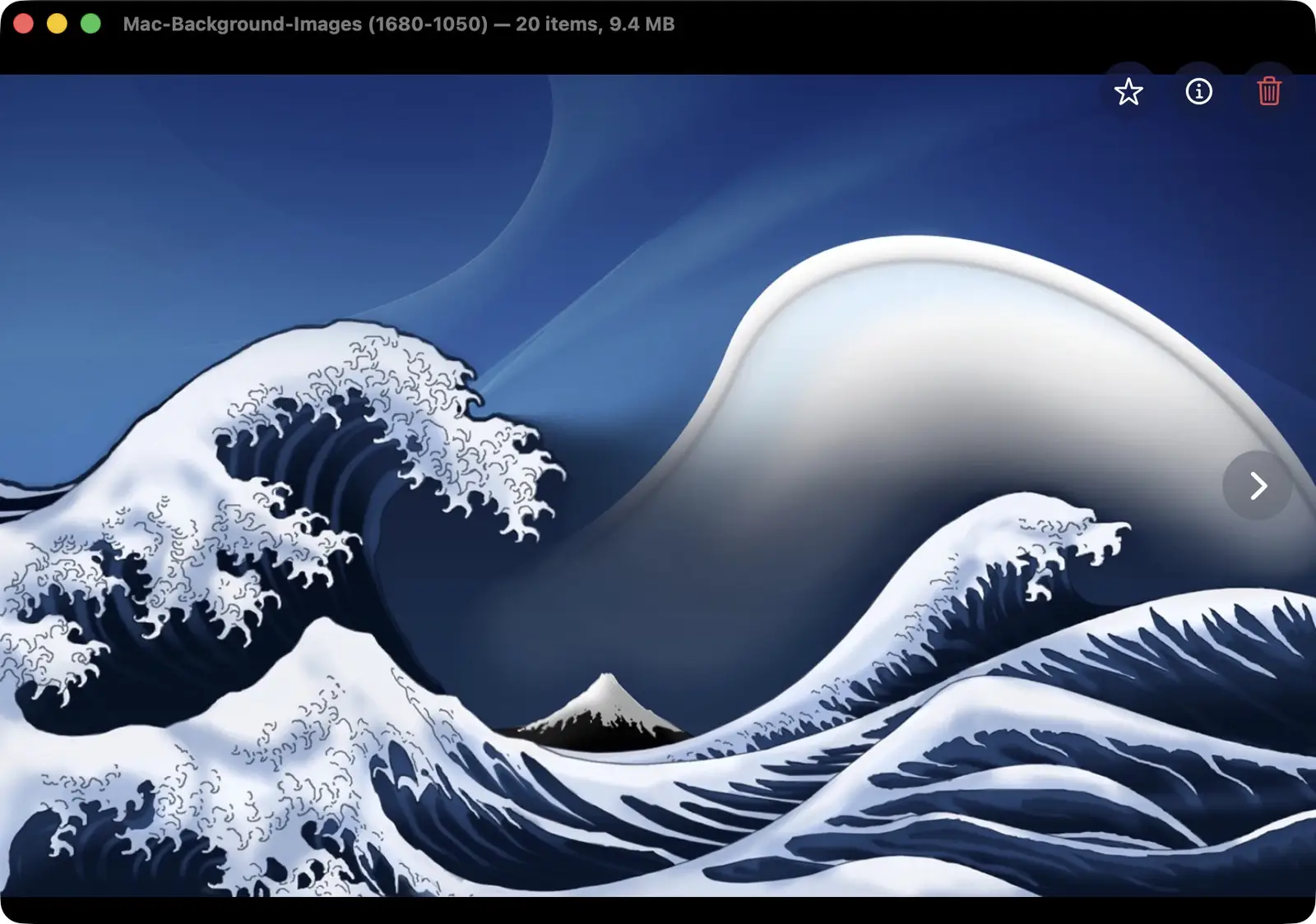
From there you can zoom with the scroll wheel, Cmd++ and Cmd+-, or Cmd+1 to jump to actual pixels. Pan by clicking and dragging. Arrow keys move between images when you’re at the default zoom level, and pan when you’re zoomed in.
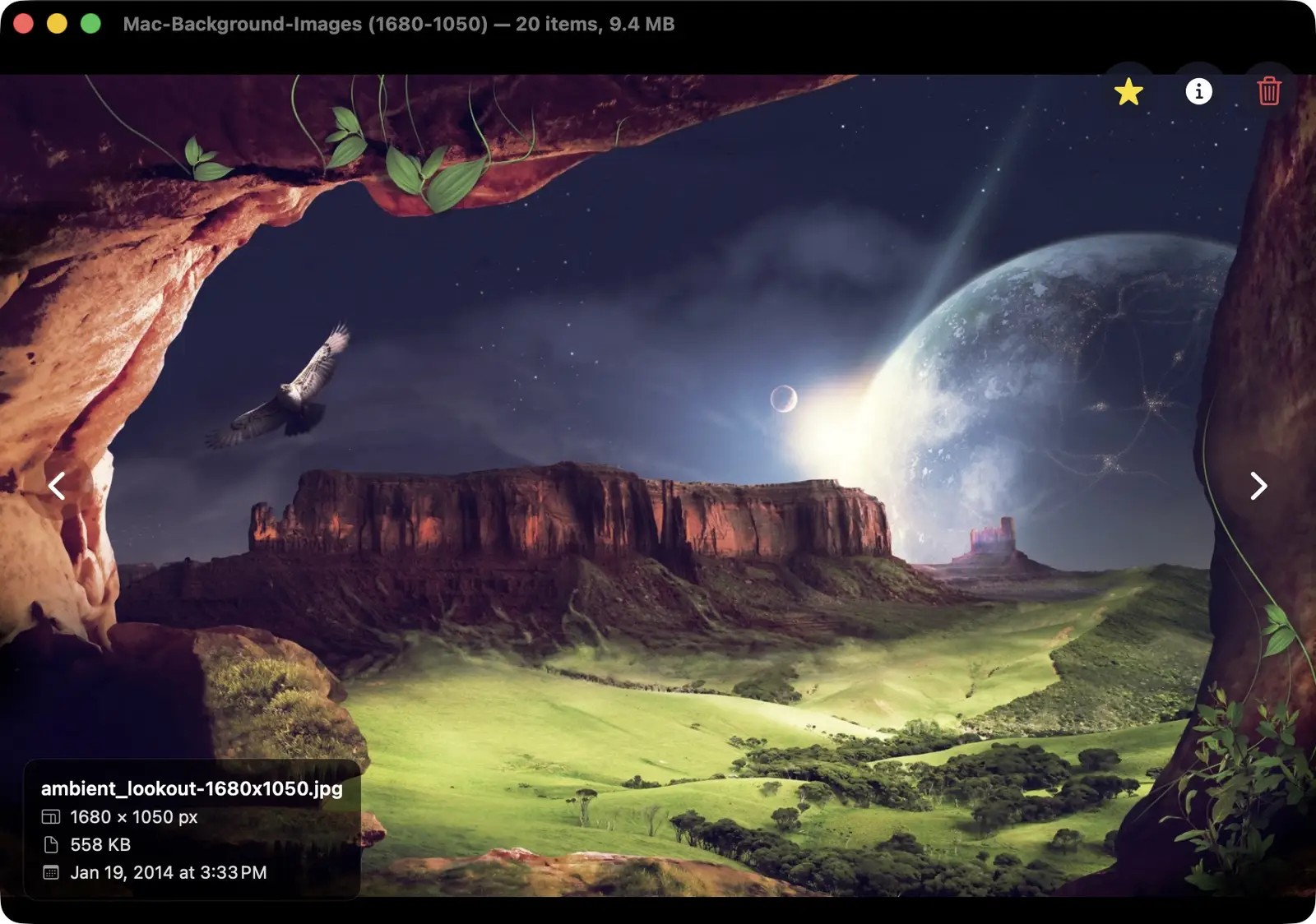
Press I to toggle an info overlay showing the filename, pixel dimensions, file size, and date modified. You can also star the image from here.
Keyboard Controls
Once you have opened a folder you can navigate, zoom, delete, and manage photos without touching a mouse.
- Arrow keys: move between images or pan when zoomed
- Cmd++ / Cmd+-: zoom in and out
- Cmd+0: fit to window
- Cmd+1: actual pixels
- Cmd+Delete: move current image to Trash
- Cmd+T: toggle square vs. aspect-ratio thumbnails
- Cmd+R: refresh the folder
- Cmd+N: open a new independent window
- Cmd+F: full screen
- Cmd+P: start or stop the slideshow
The folder also auto-refreshes when files are added or removed. If you’re pulling photos off a camera into a directory you already have open, they appear without you doing anything.
The Slideshow
Cmd+P starts a Ken Burns slideshow. Portrait images pan top to bottom, landscape images pan left to right. There’s a crossfade transition on auto-advance and an instant cut on manual navigation. The interval is adjustable down to 0.5 seconds, and the effect can be toggled on or off.
Full-screen mode plus the slideshow is what I use when I want photos running on a display for an event or a party. I use it instead of the Apple TV screensaver because it plays exactly the folder I point it at.
The slideshow steps through images in whatever sort order the gallery is using, so the sequence is the same every time. Randomized playback order is on my list.
Working with Claude Code
I wrote a project.md file before touching any code. It is a plain-language description of what the app should do and why, and I kept updating it as the project moved forward. Claude could read that file at the start of each session and maintain coherent context on what we were building and what decisions had already been made.
Claude wrote the structural Swift quickly, including the SwiftUI view scaffolding, the file system watcher, the thumbnail cache, and the settings persistence model. It did not make the product decisions. When I wanted the Ken Burns effect, I had to work out what panning and timing meant for this app before Claude could build any of it.
Debugging took multiple rounds on some things. Describing what I was seeing on screen and pointing at the part of the code I thought was responsible got most of them. When the first pass came back with nothing, widening the search to the surrounding code usually turned it up. Answering “I can’t reproduce that” with a more specific account of the symptoms worked better than accepting it.
I spent a couple of hours on this instead of the days it would have taken me to learn enough Swift to write it myself. I can read the Swift in the repo and follow what it does, and I did not have to write it.
Performance and Security
I wanted to get two things right from the start, performance and security.
The performance concern was the thumbnail cache. Loading a full-resolution image to display a 150px thumbnail means scrolling a folder of a few hundred photos does a few hundred full decodes. Claude proposed caching the generated thumbnails early on, and the gallery scrolls without stalling on the folders I use it with.
For security I had Claude review how the code handles file system access and user data. The app makes no network calls, sends no telemetry, and has no external dependencies, which Package.swift shows by having no dependency list at all. The files you open are read from disk and go nowhere else. Per-directory authentication is something I want to add, something like Touch ID before a specific folder will load.
What’s Next
A short list of things I want to add:
- Randomized slideshow order
- Touch ID / password authentication per folder
- Some form of basic metadata editing (at least rename)
The project is open and the build process is straightforward. If you want to run it yourself, clone the repo, run ./build-app.sh, and copy the output to /Applications.